


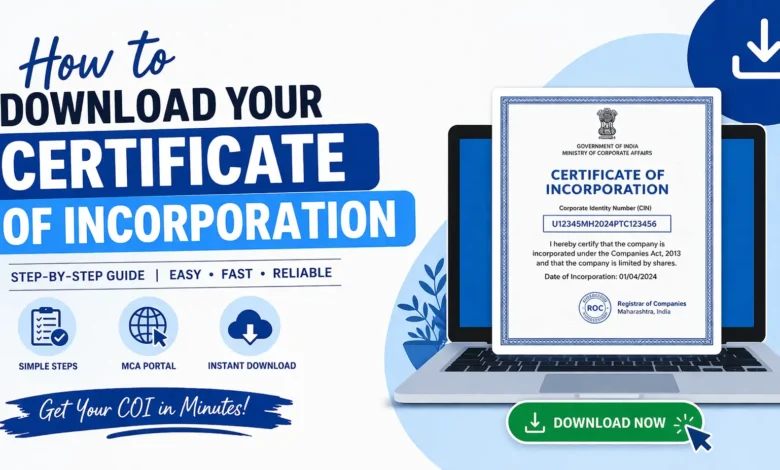
You’ve registered your company. Congratulations. But now someone, a bank, an investor, a government department, is asking for your Certificate of Incorporation, and you’re not sure where to find it or how to download it.
You’re not alone. Thousands of business owners search for their incorporation certificate every month, often at critical moments: opening a bank account, applying for GST registration, raising funding, or signing a major contract.
This guide will walk you through exactly how to download your certificate of incorporation from the MCA21 portal, what the document contains, why it matters, and what to do if you run into trouble. No fluff, just clear, practical steps.
What Is a Certificate of Incorporation?
A Certificate of Incorporation is the official document issued by the Registrar of Companies (RoC) under the Ministry of Corporate Affairs (MCA) that legally recognises the existence of your company. Think of it as your company’s birth certificate.
Once issued, it confirms:
- That your company has been duly registered under the Companies Act, 2013
- The Corporate Identity Number (CIN) assigned to your company
- The date of incorporation
- The type of company (Private Limited, Public Limited, OPC, etc.)
- The registered state of the company
The document is digitally signed by the RoC and carries the official MCA seal, making it a legally valid instrument. Under Section 7(2) of the Companies Act, 2013, the certificate is conclusive evidence that all requirements of registration have been complied with.
Why Do You Need to Download It?
Your certificate of incorporation is one of the most frequently requested documents in a company’s lifecycle. Here are the most common situations where you’ll need it:
Banking and Finance: Every bank in India requires a certificate of incorporation as a KYC document when you open a current account for your business. Without it, the account cannot be activated.
GST Registration: When applying for Goods and Services Tax (GST) registration on the GST portal, the certificate of incorporation is a mandatory document that establishes the legal identity of your business.
Funding and Investment: Angel investors, venture capitalists, and even government grant schemes require the incorporation certificate as part of their due diligence documentation.
Government Tenders and Contracts: Most government procurement portals, including GeM (Government e-Marketplace), require you to upload your incorporation certificate during vendor registration.
Startup India Recognition: To register under the DPIIT Startup India scheme and avail of benefits like tax exemptions and fast-track patent processing, you must submit your certificate of incorporation.
Regulatory and Compliance Filings: Various regulatory bodies — SEBI, RBI, FSSAI, IEC — ask for this document during licensing and compliance processes.
Where Is the Certificate of Incorporation Issued?
In India, when a company is successfully registered through the MCA21 portal, the Registrar of Companies issues the Certificate of Incorporation electronically. This means:
- There is no physical copy mailed to you
- The certificate is generated as a digitally signed PDF
- It is accessible directly through the MCA21 portal using your registered credentials
- It can also be downloaded by the public through the MCA’s document access service
This is an important distinction many new founders miss. If you haven’t received a hard copy, that’s completely normal, the digital version is the official, legally valid certificate.
How to Download Your Certificate of Incorporation (Step-by-Step)
There are two primary ways to download your certificate of incorporation: through your registered MCA login (for directors and authorised signatories) or through a public document access service.
Method 1: Download via MCA21 Portal (Registered Users)
This is the most direct route if you are a director, company secretary, or authorised signatory of the company.
Step 1: Visit the MCA21 Portal
Go to https://www.mca.gov.in and click on “MCA Services” on the top navigation bar.
Step 2: Log In to Your Account
Click on “Login” at the top right corner. Enter your registered username and password. If you haven’t created an account, you’ll need to register using the same email ID used during company incorporation.
Step 3: Navigate to Company Filing History
After logging in, go to “MCA Services” > “E-Filing” > “View Public Documents” or navigate through “My Workspace” to find your company.
Step 4: Search for Your Company
Enter your Company Name or CIN (Corporate Identity Number) in the search bar. Your CIN was assigned at the time of incorporation and appears in all MCA correspondence.
Step 5: Access Company Documents
Once your company appears in the results, click on it to open the company master data. Here, you will find an option to “View Documents” or access the “Document Index”.
Step 6: Locate the Incorporation Certificate
In the document list, look for the form labelled “INC-11” — this is the form under which the Certificate of Incorporation is filed. It will have a PDF icon next to it.
Step 7: Download the Certificate
Click on the PDF icon to download the certificate. You may be prompted to pay a nominal document viewing fee (currently ₹100 per document for public access). If you are accessing it as a registered director, the download may be free.
The downloaded file will be a digitally signed PDF, and the digital signature can be verified using any standard PDF viewer such as Adobe Acrobat.
Method 2: Download via Public Document Access (Without Login)
If you are a third party, such as a bank officer, investor, or partner, verifying a company’s credentials, you can access the certificate without an MCA login.
First Step: Visit MCA
Second Step: Click on “MCA Services” and select “View Company/LLP Master Data” under Company Services.
Third Step: Enter the CIN or company name and search.
Fourth Step: On the company master page, click “View Signatory Details” or go to “Document” > “View Public Documents”.
Fifth Step: Pay the nominal fee via net banking, debit/credit card, or UPI and download the digitally signed PDF instantly.
This method is particularly useful for due diligence, legal verification, and compliance checks.
What Does a Certificate of Incorporation Contain?
Understanding what’s inside your incorporation certificate helps you use it correctly and spot any errors that may need correction.
A standard certificate of incorporation in India contains:
- Company Name– The exact registered name as approved by MCA
- Corporate Identity Number (CIN)– A 21-character unique identifier
- Date of Incorporation– The official date from which the company legally exists
- Type of Company– Private Limited, Public Limited, One Person Company (OPC), Section 8, etc.
- Registered State– The state of the RoC under which the company is registered
- Digital Signature– The electronic signature of the Registrar of Companies
- MCA Seal– The official seal of the Ministry of Corporate Affairs
Common Issues and How to Resolve Them
- I can’t find my company on the MCA portal
Double-check your CIN. If your company was incorporated recently (within the last 24–48 hours), allow some processing time for the records to be updated. If the issue persists, contact your CA or CS. - The document is asking me to pay a fee, but the payment is failing
MCA’s payment gateway occasionally has downtime. Try a different browser, clear your cache, or use a different payment method. Payments via UPI tend to be more reliable. - The certificate shows incorrect information
If your company name, date of incorporation, or any other detail is incorrect on the certificate, you will need to file a rectification request with the RoC. This typically requires submitting supporting documents and paying a fee. A Company Secretary (CS) can assist you with this process. - I’ve forgotten my MCA login credentials
Use the “Forgot Password” option on the MCA login page. The reset link will be sent to your registered email address. If you no longer have access to that email, you may need to contact MCA’s helpdesk at 1800-200-3390 (toll-free).
How to Verify the Authenticity of a Certificate of Incorporation
Since the certificate is digitally signed, its authenticity can be verified in two ways:
- PDF Digital Signature Panel– Open the certificate in Adobe Acrobat. If the digital signature is valid and the document hasn’t been tampered with, you’ll see a green checkmark confirming the signer’s identity.
- MCA Portal Verification– Search the company’s CIN on the MCA portal under “View Company/LLP Master Data”. The incorporation date and company details listed there should match exactly with what’s on the certificate.
Never accept a certificate of incorporation that isn’t digitally signed or cannot be verified on the MCA portal.
Key Takeaways
- Your certificate of incorporation is issued digitally by the MCA’s Registrar of Companies, there is no physical copy.
- It can be downloaded through the MCA21 V3 using your registered login or via the public document access service for a small fee.
- The certificate contains your CIN, company name, date of incorporation, and the RoC’s digital signature.
- Always verify the digital signature before accepting or submitting the certificate.
- If any details are incorrect, file a rectification request with the RoC through a qualified Company Secretary.